

First competitor update in 3 minutes
Let’s say you want to follow Muster AG—a competitor that is regularly active on LinkedIn and YouTube. In this lesson, you’ll set up Muster AG as a source, watch as Picasi discovers their channels, and read the first update in your Inbox.
This will take about 3 minutes—most of that time, the system will be working in the background for you.
Here’s how to do it
-
Navigate to the source overview
Click Sources in the left navigation. If you’ve just completed the onboarding wizard, there may already be a few sources listed. If not, you’ll see an empty list.
-
Create a new source
Click Add Source in the top right corner. A form with three fields will open.
-
Enter URL and Name
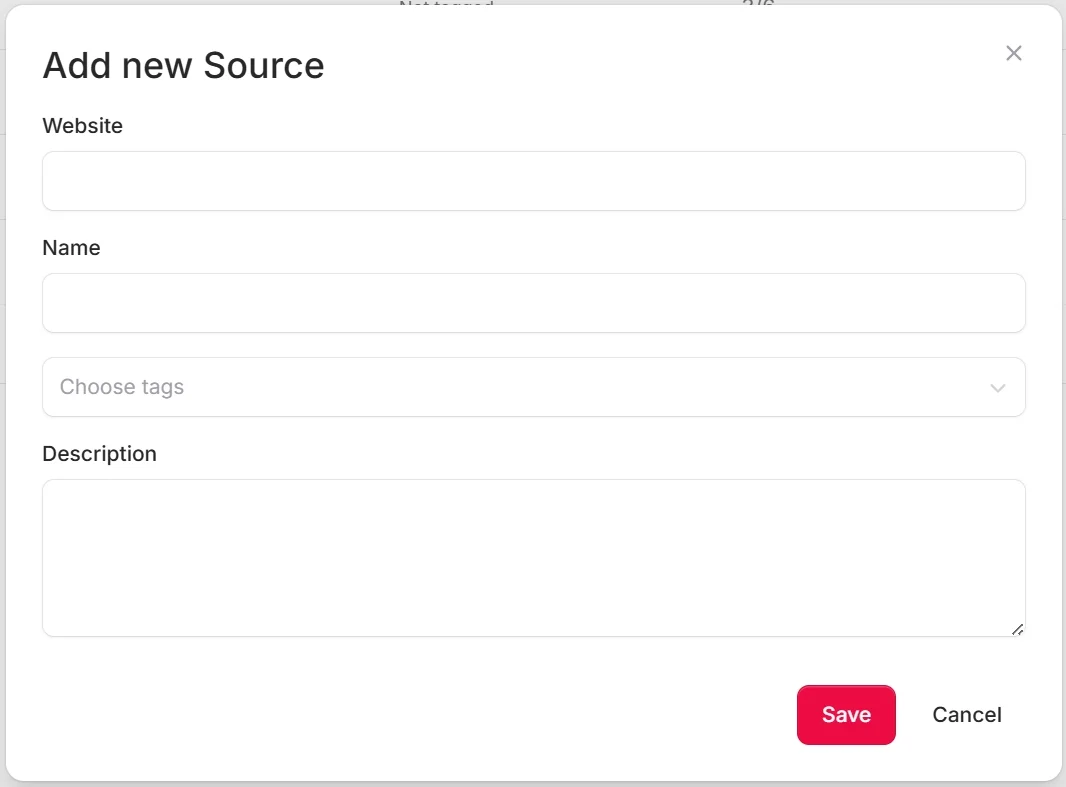
- URL: Enter a market participant’s main website, for example
muster-ag.example. You don’t need to prefix it withhttps://—Picasi adds that automatically. - Name: Assign a name that you recognize internally, e.g.,
Muster AG. If you leave the name blank, Picasi will automatically generate it based on the website’s data. - Tags: Optional. Tags help you group and filter sources later. You can also add them later.
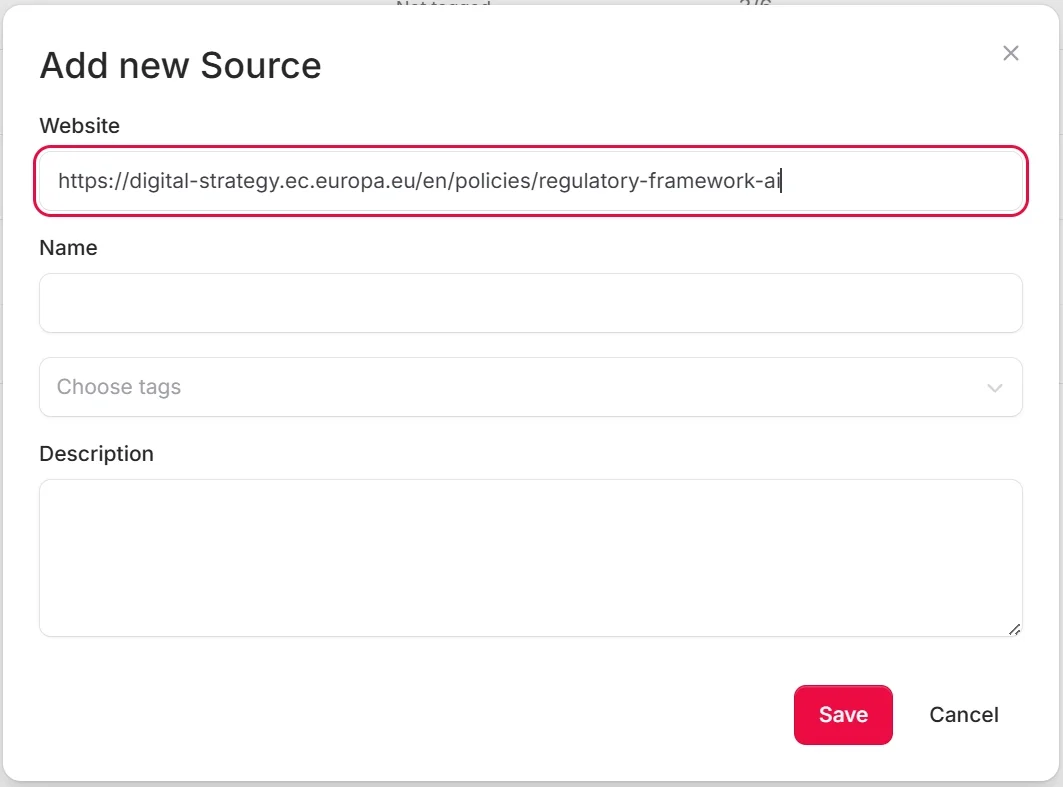
Click Save.
- URL: Enter a market participant’s main website, for example
-
Wait for channel discovery
Picasi will now analyze the Muster AG website and search for public channels: LinkedIn profiles, YouTube channel, RSS feeds. This happens in the background and usually takes two to five minutes.
During this time, you’ll see a brief message below the source name. You don’t have to wait—you can leave the page and come back later.
-
Review channels
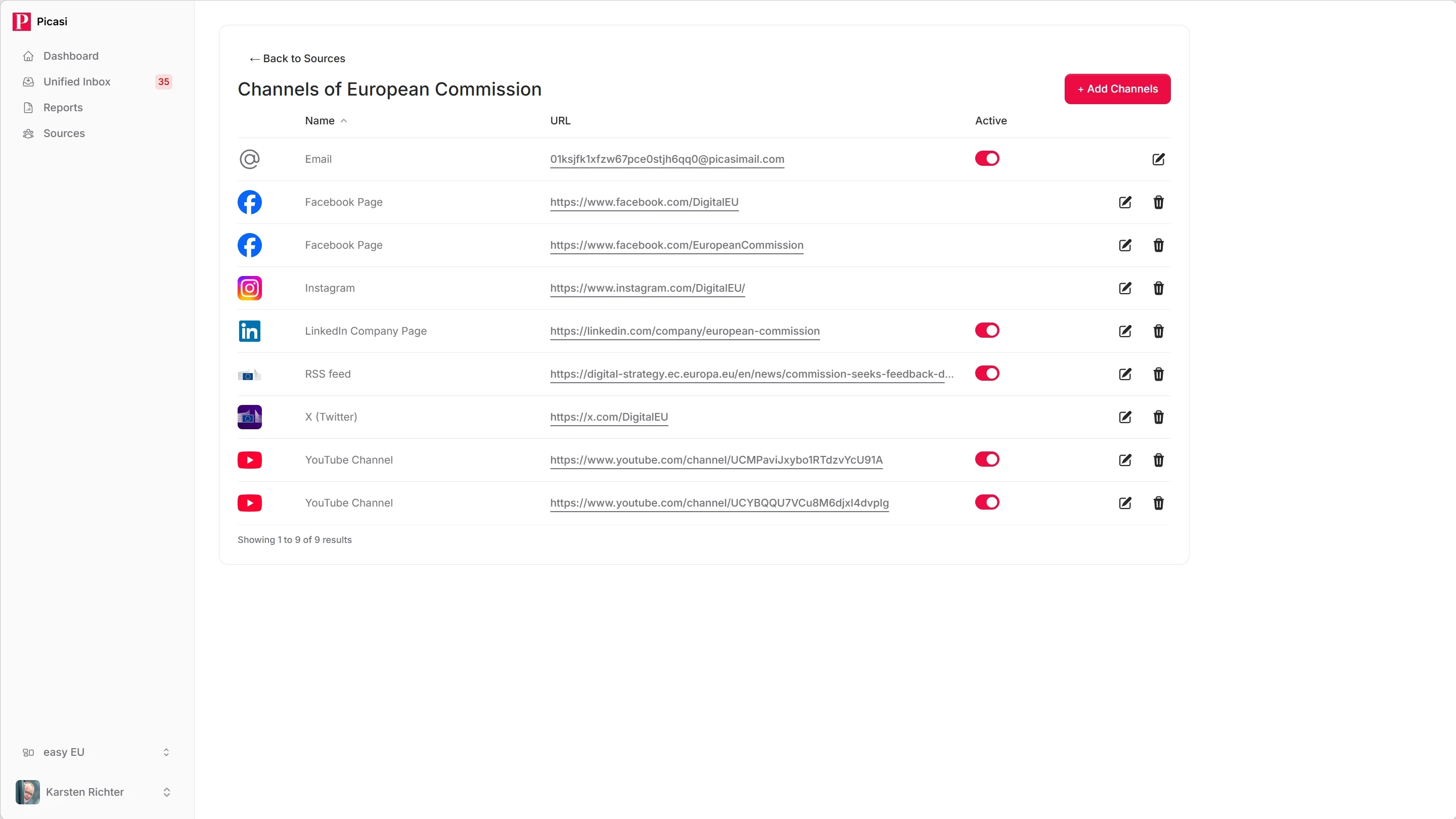
Once discovery is complete, click on Muster AG in the source list. You will now see the associated channels. Typical examples include:
- The LinkedIn company profile
- The YouTube channel (if available)
- An RSS or Atom feed for the website
If no matching channel was found, Picasi has at least created an email address. You can use this address to subscribe to the source’s newsletter—the updates will then appear directly in Picasi.
-
Wait for the first updates to arrive
Updates for new sources are fetched immediately. Later, they are fetched cyclically every few hours. The first updates will appear within a few seconds.
-
Open the Unified Inbox
Click on Unified Inbox in the navigation. You’ll see all new updates in a master-detail view: the list on the left, the content of the selected update on the right.
Click on an update from Muster AG and read what they’ve published most recently.
Good to know
Picasi regularly checks every active channel for new content. If Muster AG hasn’t posted anything today, no new updates will appear. As soon as they are active again, their content will automatically appear in your Inbox.
What’s next?
You’ve set up your first source and read your first update. Next, you’ll learn how to use the Inbox efficiently—what “Save” and “Drop” mean, and how to quickly navigate through many updates.