

Using Picasi in the AI assistant - Getting started
Imagine you’re working on a competitive analysis in Claude and want to know what Muster AG posted on LinkedIn last week. Instead of opening the Picasi app, you simply ask, “Show me the latest updates from Muster AG in Picasi.” Claude responds immediately with the current data.
This is possible via MCP—the Model Context Protocol. Picasi implements an MCP server that allows AI assistants to work with your Workspace data: search for updates, list sources, retrieve reports.
This lesson shows you how to get started with Claude Code, the most commonly used method.
What you need
- A Picasi account with Admin or Owner role
- Claude Code CLI (installed and logged in)
How to proceed
-
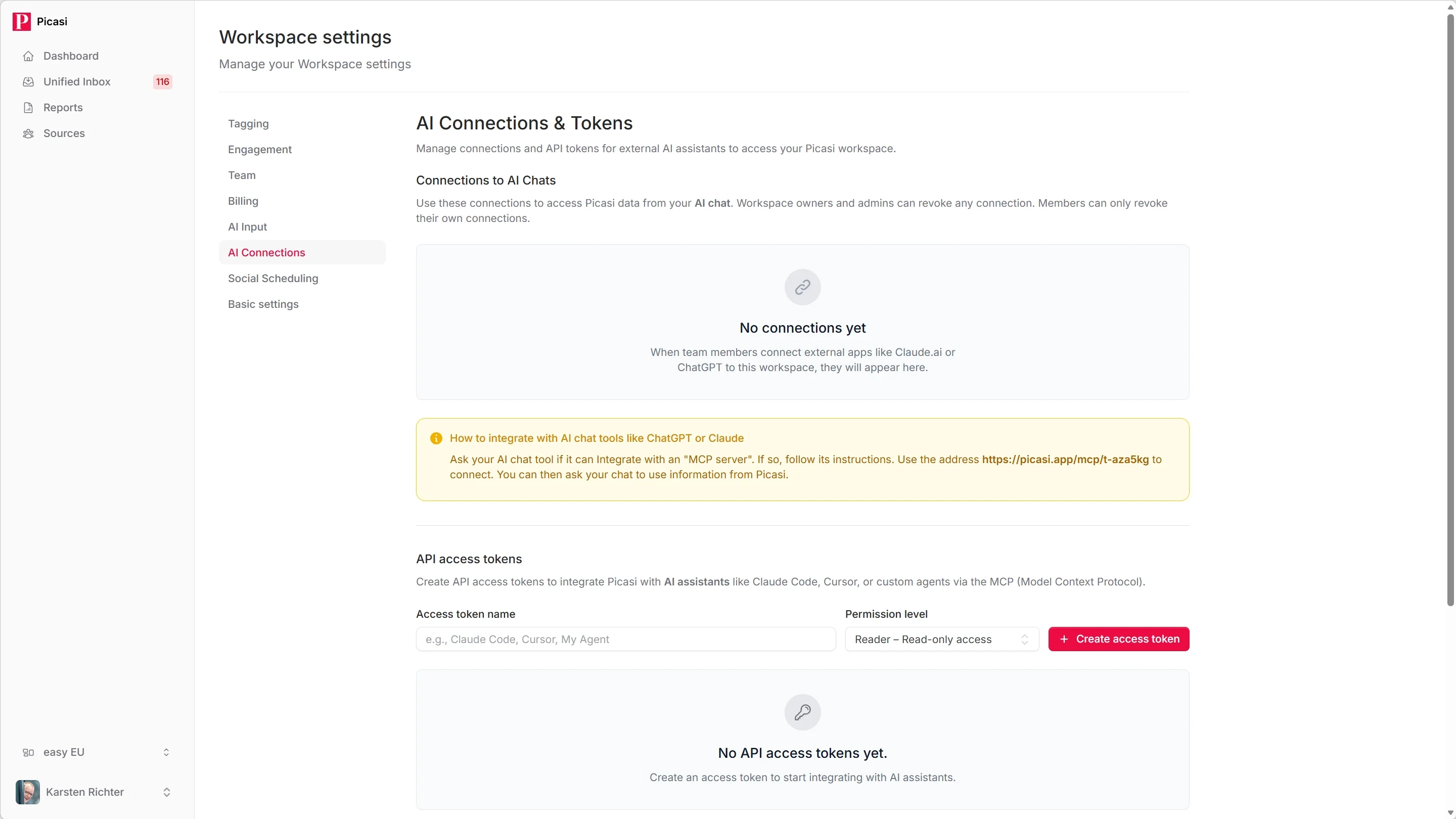
Navigate to AI Connections
In Picasi, open the Settings menu and click on AI Connections and Tokens. Here you manage this Workspace’s API tokens. Your own OAuth connections live elsewhere, under Personal settings → Connections.
-
Create an API token
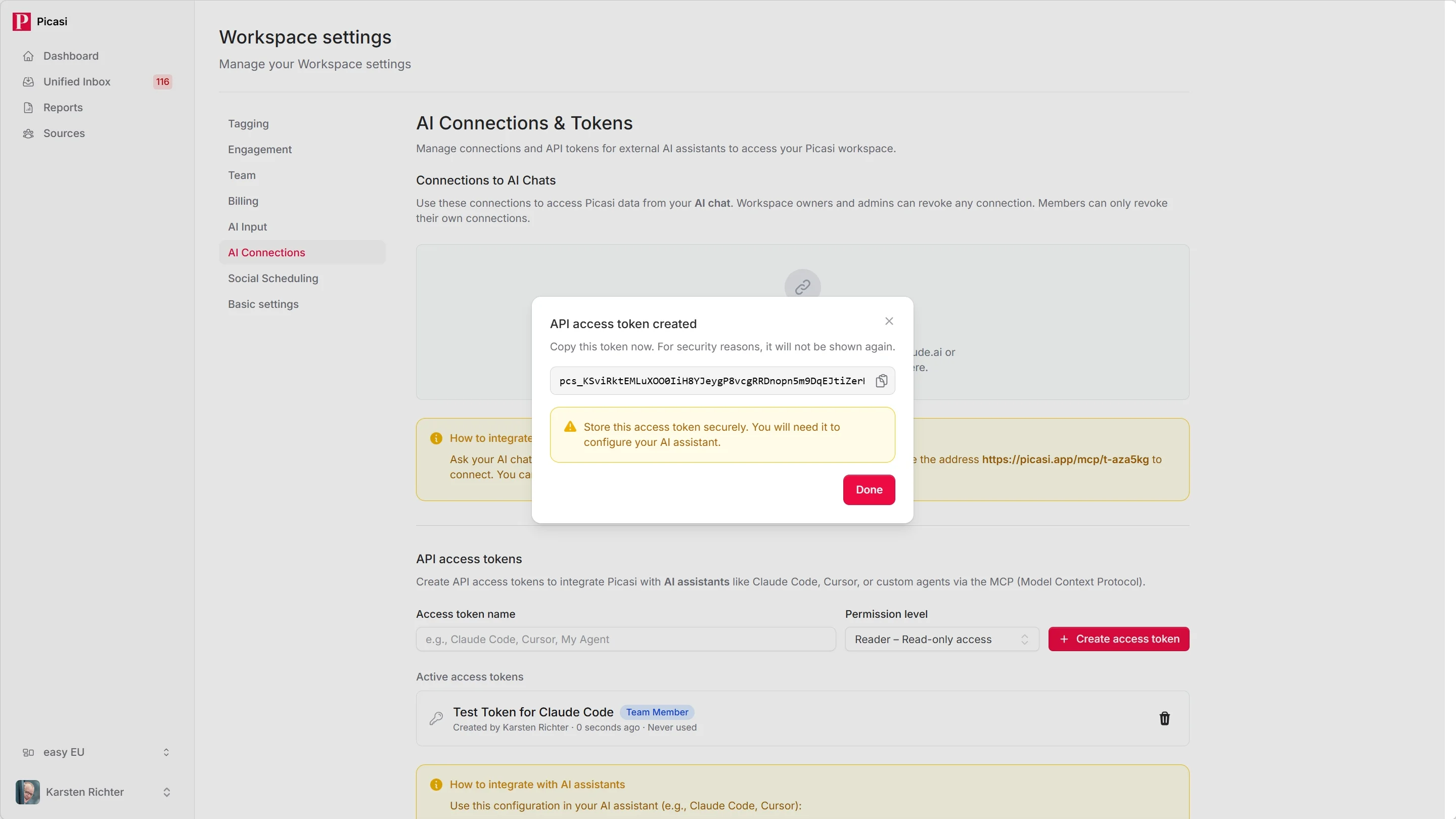
Click on Create New Token. Give it a name that clearly indicates its purpose—for example,
Claude Code – LenaorClaude Code – Agentur.Select the appropriate role:
- Member — can read updates and generate reports; sufficient for most use cases
- Admin — can also create and edit sources and channels
Click Create Token.
-
Copy MCP URL
On the same page you’ll find your MCP URL. It is the same for every Workspace:
https://picasi.app/mcpWhich Workspace the assistant sees is decided by the token from step 2. A token belongs to exactly one Workspace.
-
Configure Claude Code
Open a terminal and add Picasi as an MCP server to Claude Code:
Terminal window claude mcp add picasi \--transport http \--url https://picasi.app/mcp \--header "Authorization: Bearer DEIN_TOKEN"Replace
DEIN_TOKENwith the token from step 2.Alternatively, you can enter the configuration directly into the
.mcp.jsonin your project root:{"mcpServers": {"picasi": {"type": "http","url": "https://picasi.app/mcp","headers": {"Authorization": "Bearer DEIN_TOKEN"}}}} -
Test the connection
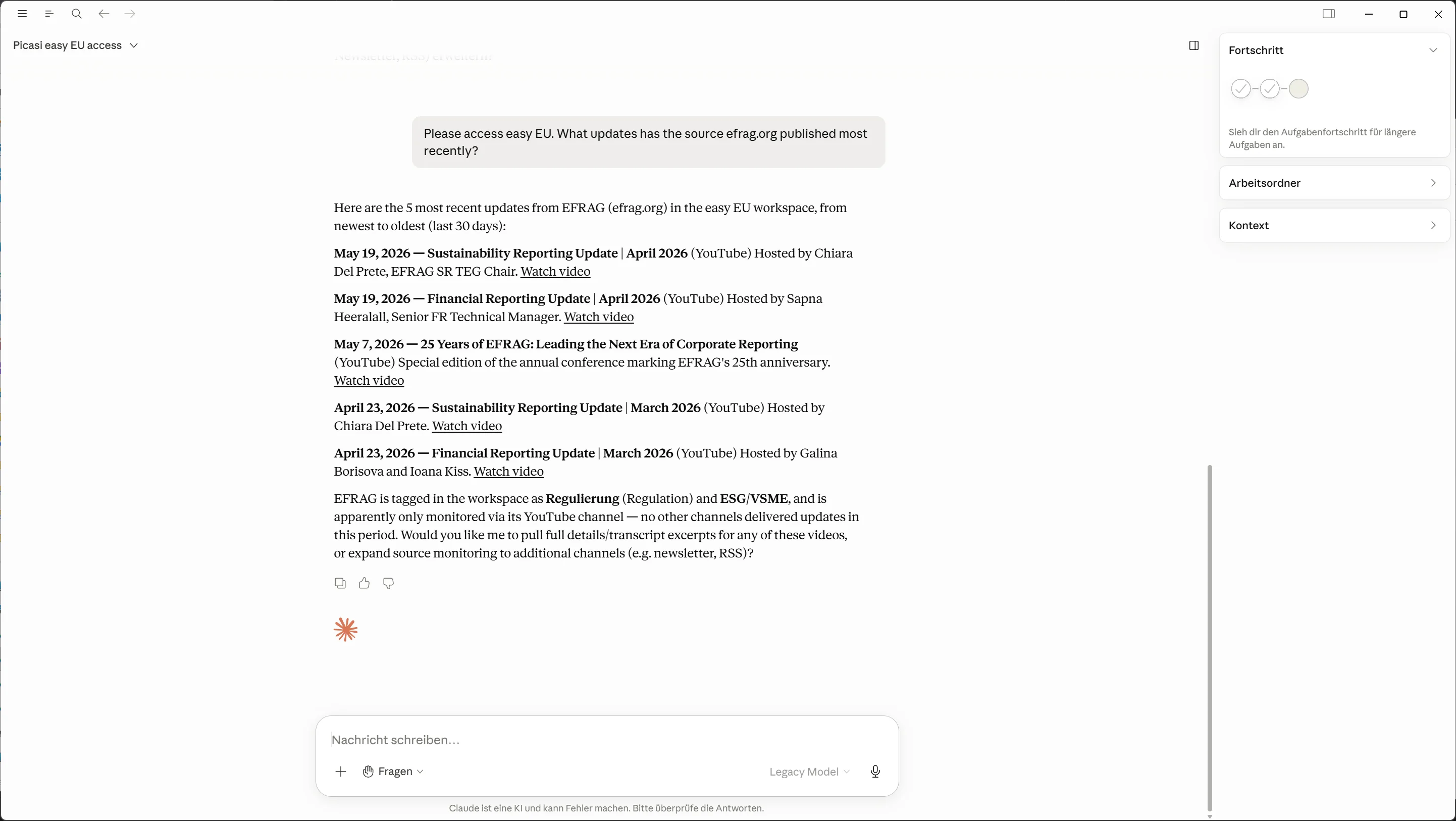
Launch Claude Code and ask something like:
What did Muster AG post in Picasi last week?
Or:
Show me my latest reports in Picasi.
If the connection works, Claude will respond with real data from your Workspace.
What you can now do with Picasi in the AI Assistant
- Search for updates by source, time period, and topic
- Count Updates instead of listing them, by source or by month
- Save, drop and tag Updates with topic tags
- Create reports, retrieve them and process them in the chat
- List and manage sources and channels (with an admin token)
You can find a complete list of available tools in the MCP Tools Reference.
What’s next?
You’ve connected Picasi to Claude Code. From here, you can incorporate Picasi data into any analysis without switching between tools.