

Understanding the Inbox - your daily work center
The Inbox is where you work with Picasi every day. This is where all the fresh updates from your monitored sources land—LinkedIn posts, YouTube videos, newsletters, website updates. From this pool, you generate reports, save interesting items for later, and drop what’s irrelevant.
This lesson shows you how the Inbox is structured and how to work with it efficiently.
How the Inbox is structured
The Inbox is divided into three folders:
- Inbox — new, unrated updates
- Saved — updates you’ve deemed relevant and saved
- Dropped — updates you’ve intentionally dropped
The view is split into two columns: on the left is the list of updates, and on the right is the content of the currently selected update. You can navigate by clicking or using the arrow keys — this saves a lot of time if you go through many updates every day.
Here’s how to proceed
-
Open the Inbox
Click on Inbox in the navigation bar. You’ll see all new updates — sorted by date received, newest first.
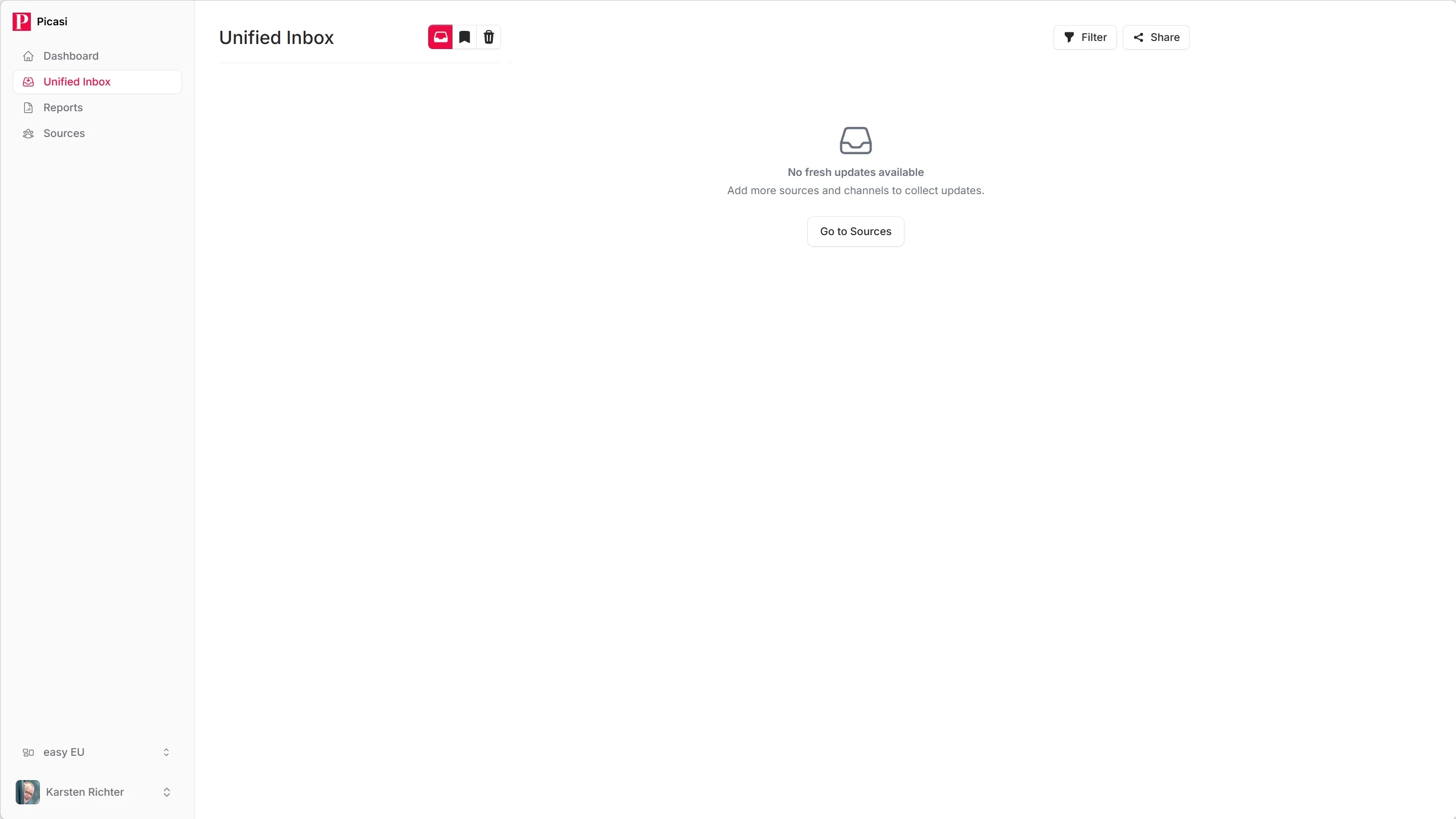
If the Inbox is empty, either no updates have been received yet or all have already been reviewed. In this case, check the Saved folder.
-
Read an update
Click on an update in the list on the left. In the right-hand pane, you’ll see the full content—the text of the post or newsletter article, date, source, and channel type.
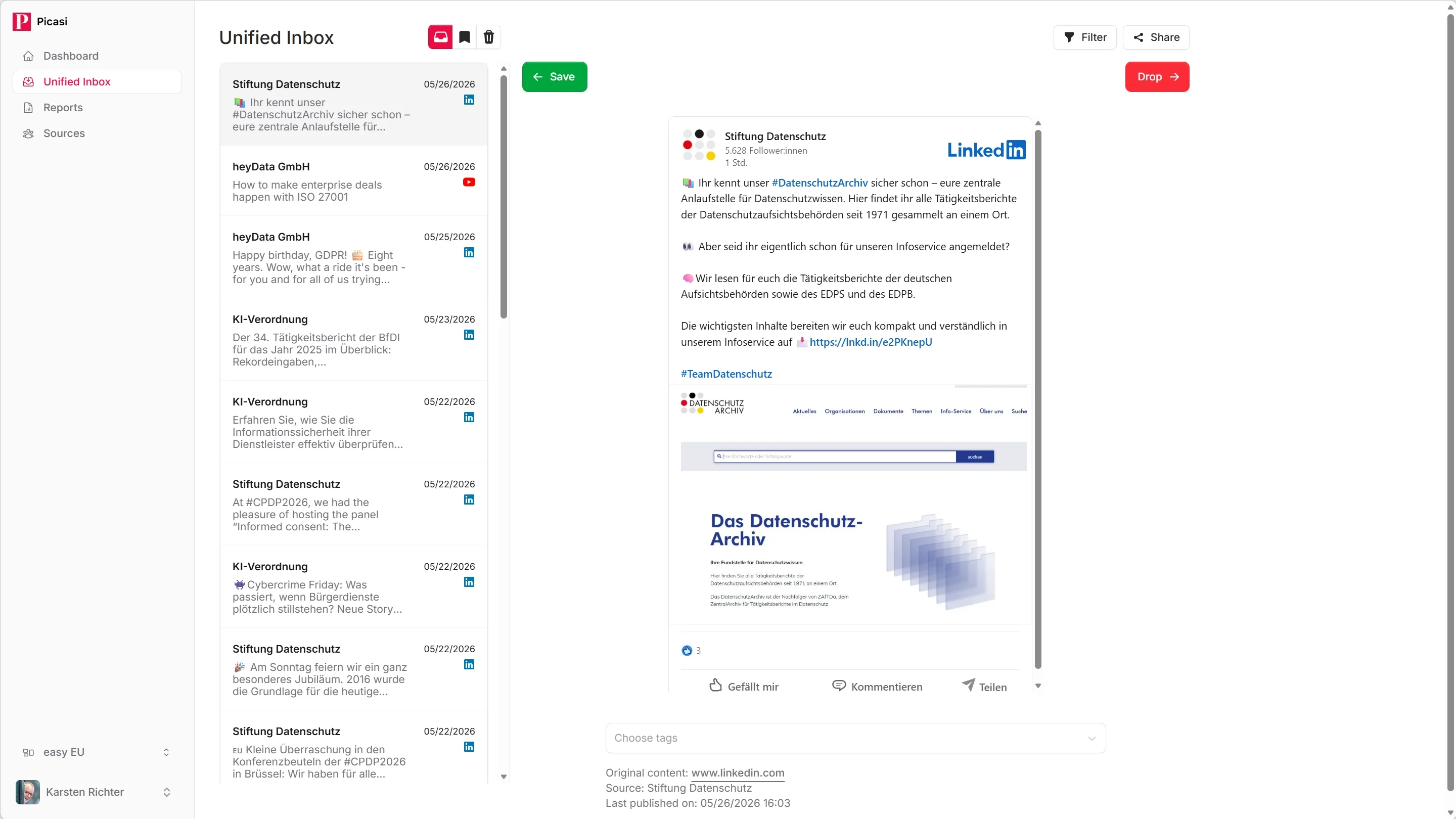
The Open Original link takes you to the source on LinkedIn, YouTube, or the website if you need more context.
-
Mark update as relevant
If an update is relevant to your team—an interesting product launch by a competitor, a new partnership, an eye-catching LinkedIn post—click Save or press the right arrow key.
The update moves to the Saved folder and remains there permanently.
-
Drop an update
If an update isn’t of interest to you, click Drop or press the left arrow key. It will disappear from your Inbox and be moved to the Dropped folder.
-
Switch between folders
At the top of the Inbox, you’ll see the three folder tabs. Switch to Saved to view all saved updates—this is the basis for your reports.
In the Dropped folder, you’ll find everything you’ve sorted out, as long as it hasn’t been automatically deleted yet.
Keyboard shortcuts
If you go through a lot of updates every day, you’ll work much more efficiently with keyboard shortcuts:
↑/↓— previous / next update in the list→— move update to Saved←— Move update to Dropped
You don’t have to click on an update—you can navigate through the list directly using the keys and rate them at the same time.
Why three folders?
The Inbox is an entry point, not an archive. Everything that lands there is waiting for your decision: relevant or not? This separation keeps the Inbox clean and ensures that the reports are based on truly relevant content.
Saved is your curated archive. When you generate a summary or analysis, Picasi works by default with the most recently saved updates—exactly the content you’ve deemed important.
What’s next?
You now know how to work with the Inbox on a daily basis. The next step is to generate an report from the saved updates—a summary, an analysis, or LinkedIn posts.