

Create your first report
Once you’ve collected a handful of updates from your Inbox, it’s time for the next step: an report. Picasi can generate a structured summary from your updates in seconds—what have your competitors been up to this week, what have they been writing about, and what stands out?
In this lesson, you’ll create your first report, read it in the Reports view, and learn how to share or export it.
What you need
For the summary to be meaningful, you should have at least five to ten updates in your Inbox or under Saved. With only one or two updates, the result will be correspondingly brief.
How to proceed
-
Open the Inbox
Click Inbox in the navigation bar. If necessary, switch to the Saved folder if you want to report on a curated set of updates.
-
Start the summary
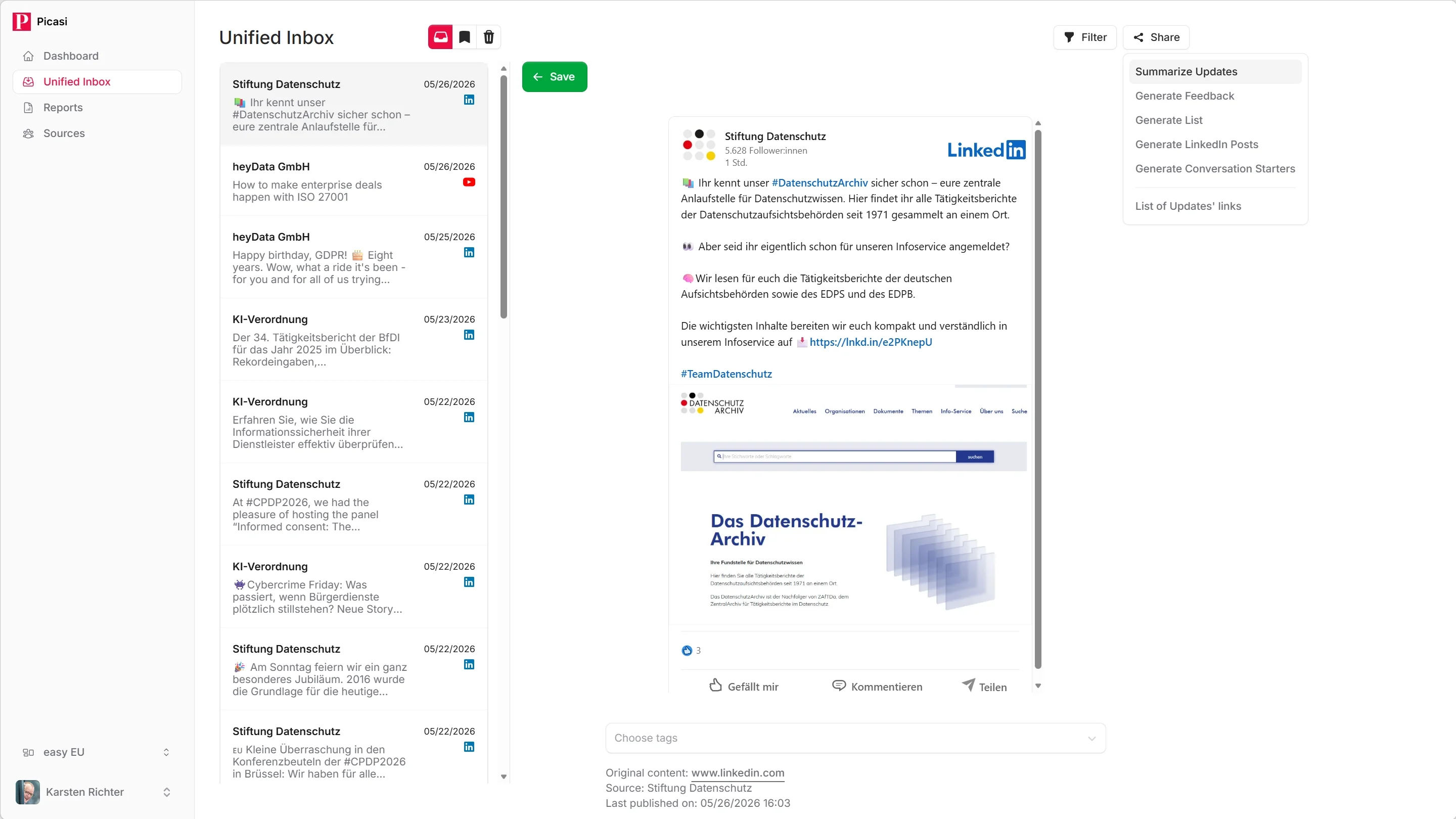
Click Summary at the top of the Inbox. A small window will open.
Here, you can optionally enter a focus text—this is a brief instruction on what the AI should pay particular attention to. For example:
Focus on product releases and pricing changes
Or:
What has Muster AG communicated about sustainability?
If you don’t specify a focus, Picasi will create a general overview of the most important topics.
-
Start Generation
Click Generate. Picasi sends the currently visible updates to the AI and starts the background job.
You’ll briefly see a message indicating that the task is running. You can continue using the Inbox in the meantime—you don’t have to wait.
-
Read the report
Click Reports in the navigation. Your new report appears at the top of the list, marked with the type Summary and the date.
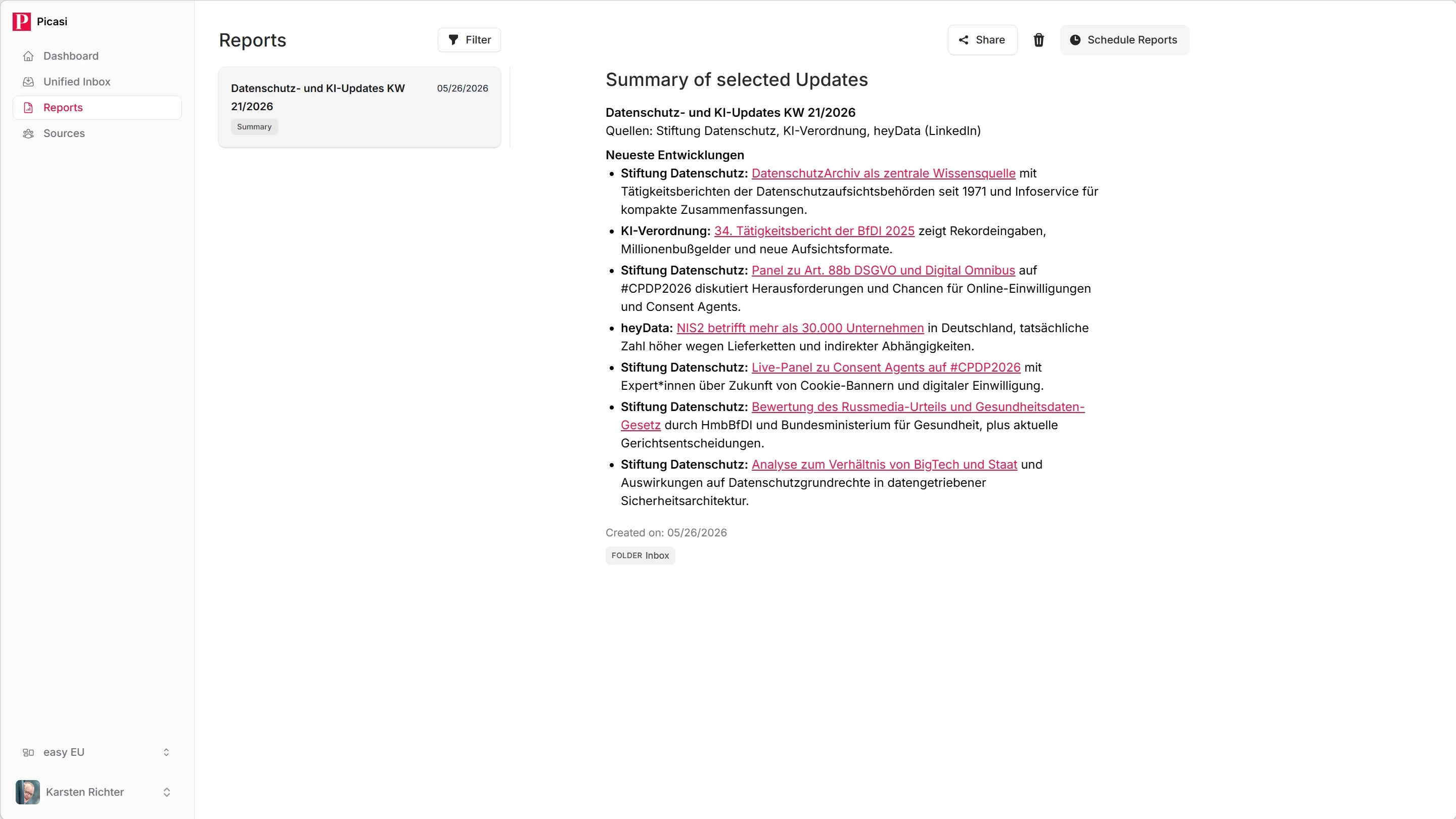
Click on the report to read it in the details pane on the right. A typical summary includes:
- The most important topics during the period
- Anomalies and patterns
- The most relevant individual updates with brief context
-
Export or share the report
If you want to share the report, you have several options:
- Export: As plain text, HTML, or Markdown — great for copying and pasting into emails or documents
- Send via email: Send directly from Picasi to any email address
- Share publicly: Picasi generates an anonymous link that you can share with someone who doesn’t have a Picasi
account## Other report types
In addition to the Summary, there are four other types you can generate from the Inbox:
- Analysis — structured assessment with strengths, weaknesses, and recommendations for action
- List — curated list of the most relevant updates, with AI filters for specific topics
- LinkedIn Posts — three ready-to-go posts you can publish directly on LinkedIn
- Conversation Starters — three to five updates suitable for engaging in comments
All types work on the same principle: Click the corresponding button in the Inbox, optionally enter a focus, then generate.
What’s next?
You’ve created your first report. The next step is to find out how to generate reports automatically—daily or weekly—without anyone having to manually press a button.